How to set up a disposable camera app for events
Lense is a disposable camera app for weddings, parties, vacations and any other event. Guests scan a QR code, take photos, and everything lands in one shared album. Here's how to set it up, step by step.
What's included with your Lense event
Photos and videos taken with the Lense camera, saved in original quality. Videos up to 1 minute are available as an extra.
Camera roll uploads, so guests can also add photos they took with their own camera app.
Likes, comments and captions on every photo.
A live photo wall that shows new photos on a screen during your event, included with every event.
One shared album with everything in it, ready to download afterwards.
Set up your event in the app
Setting up takes a few minutes. Do it at least a few weeks before your event if you want to print cards or signs with your QR code.
Download Lense and create an event.
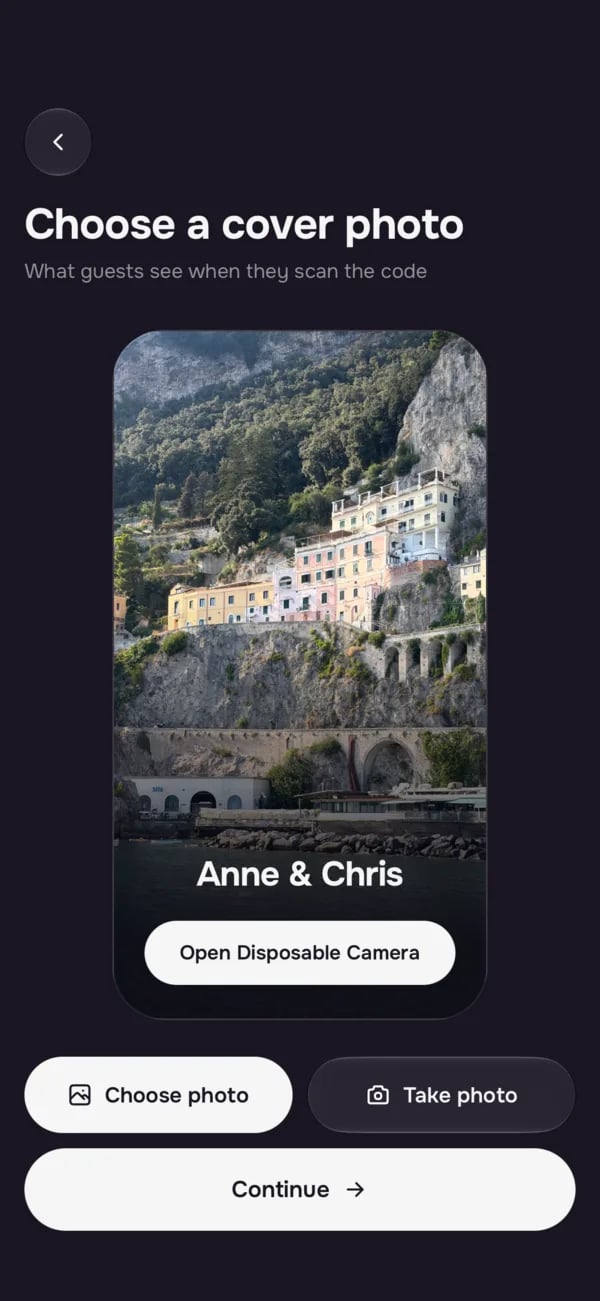
Give it a name and choose a cover photo.
Set the start and end date and time.
Guests can take and upload photos in between. Want photos from before the big day? Start the event earlier.
Choose your guest count.
You pay once, based on how many guests you invite. No subscription. See all prices on our pricing page.
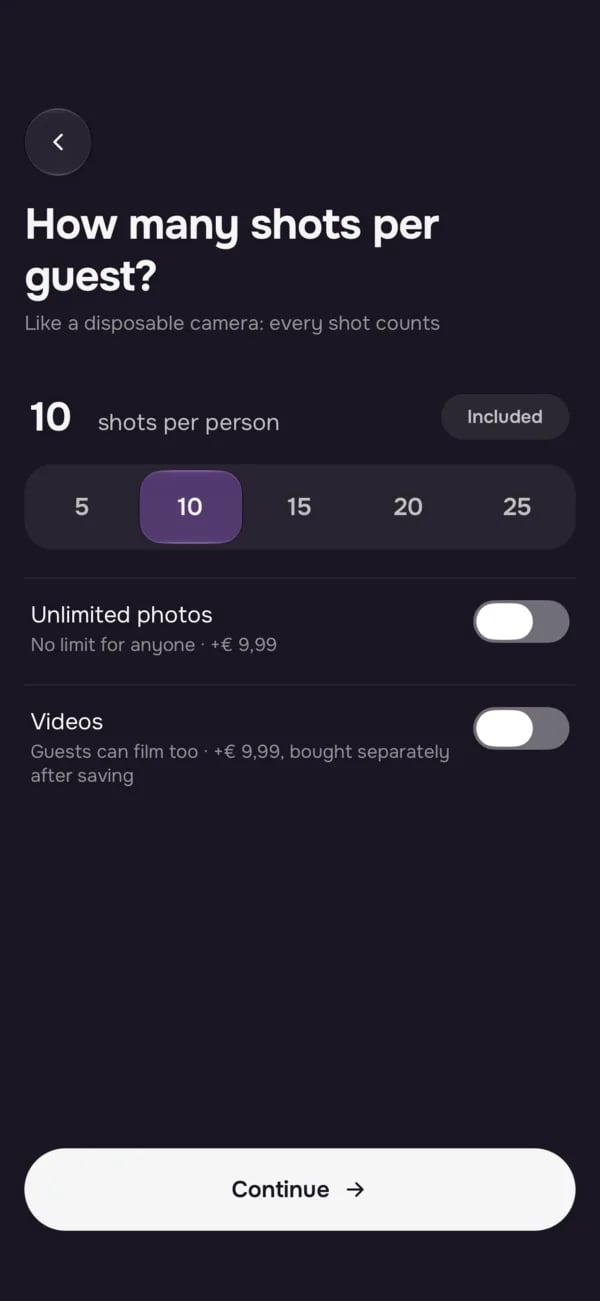
Set the photo limit per guest.
A limit makes every shot count, just like a real disposable camera. Prefer no limits? Unlimited photos and videos are available as paid add-ons.
Choose when photos are revealed.
Show them instantly, after the event, or after a set number of hours, so everyone sees them together.
Decide who can see the album.
Let guests see all photos, or keep the album visible to you only.
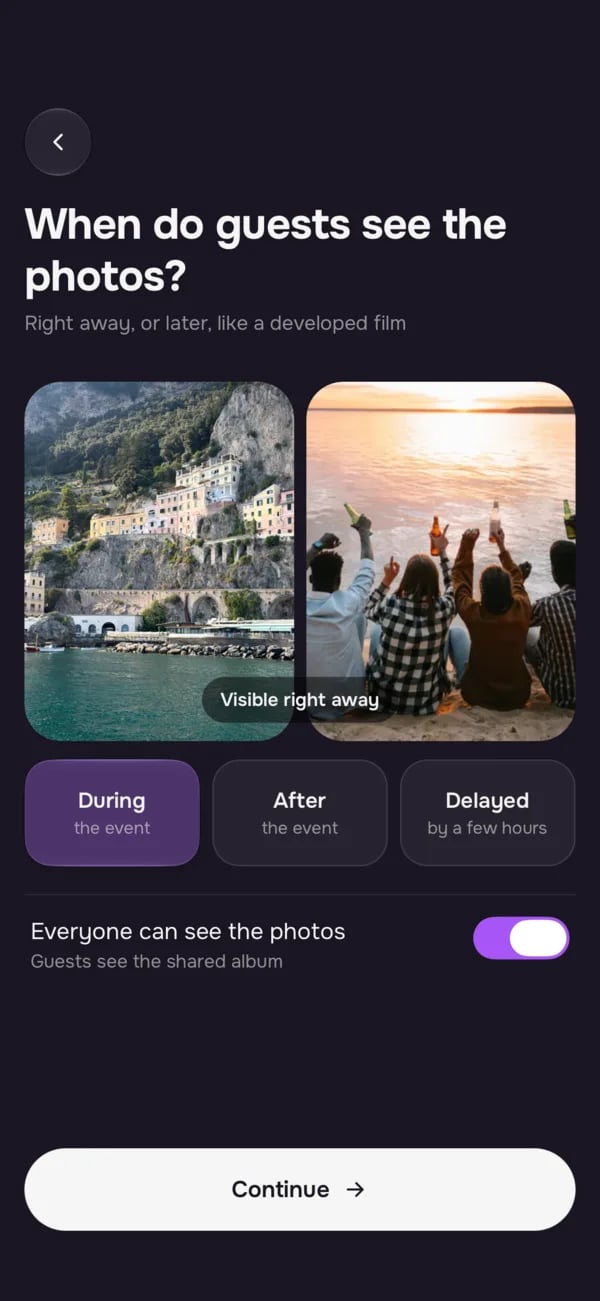
Test it, then pay.
Preview the camera and the album in the app. Only pay once you're happy with how everything works.
Changed your mind? You can change all settings later, and upgrade to more guests, unlimited photos or videos at any time.
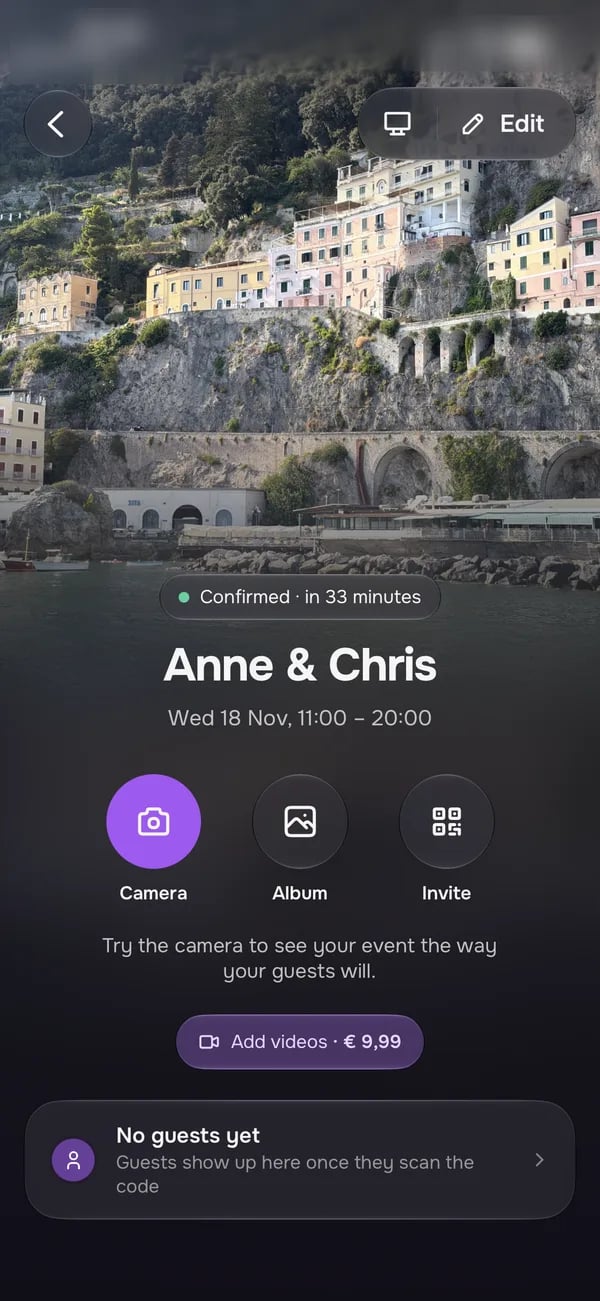
Share your QR code with guests
You now have a QR code and a link. Guests need one of the two to join, so make them easy to find.
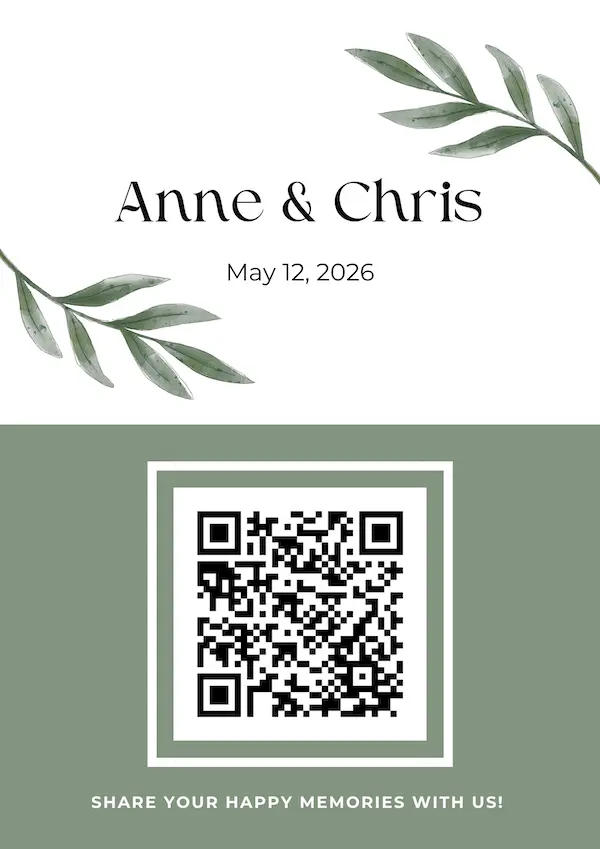
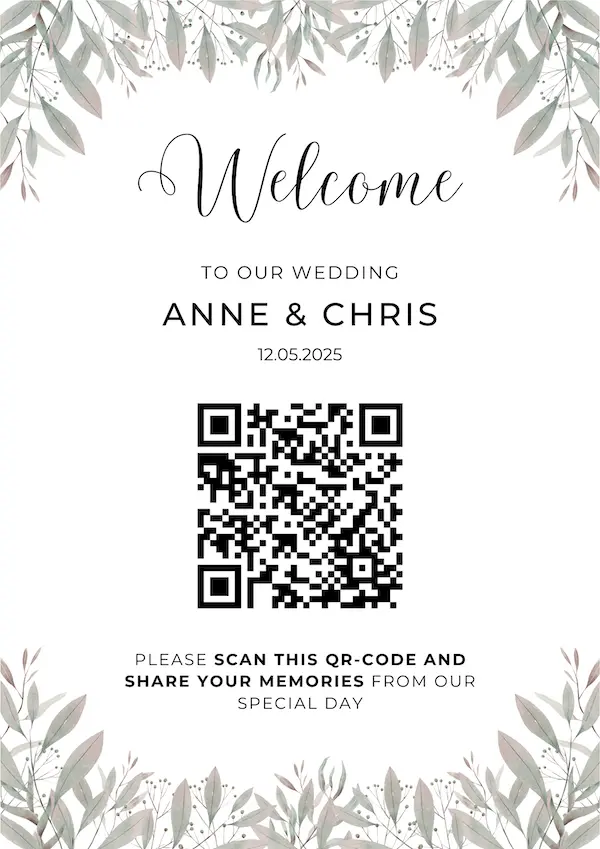
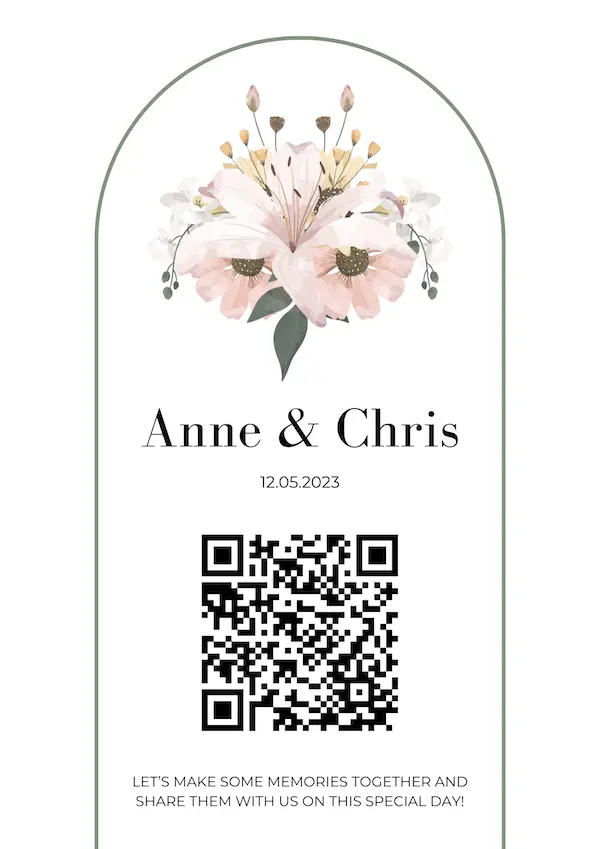
Use one of our ready-made templates, which you'll find in the app and on our QR code templates page. Want a more custom feel? Download your QR code and add it to your own design, for example in Canva, so it matches your theme.
Print it and put it in a nice frame. Table cards, table numbers and framed signs at the entrance, the bar and the dance floor all work well.
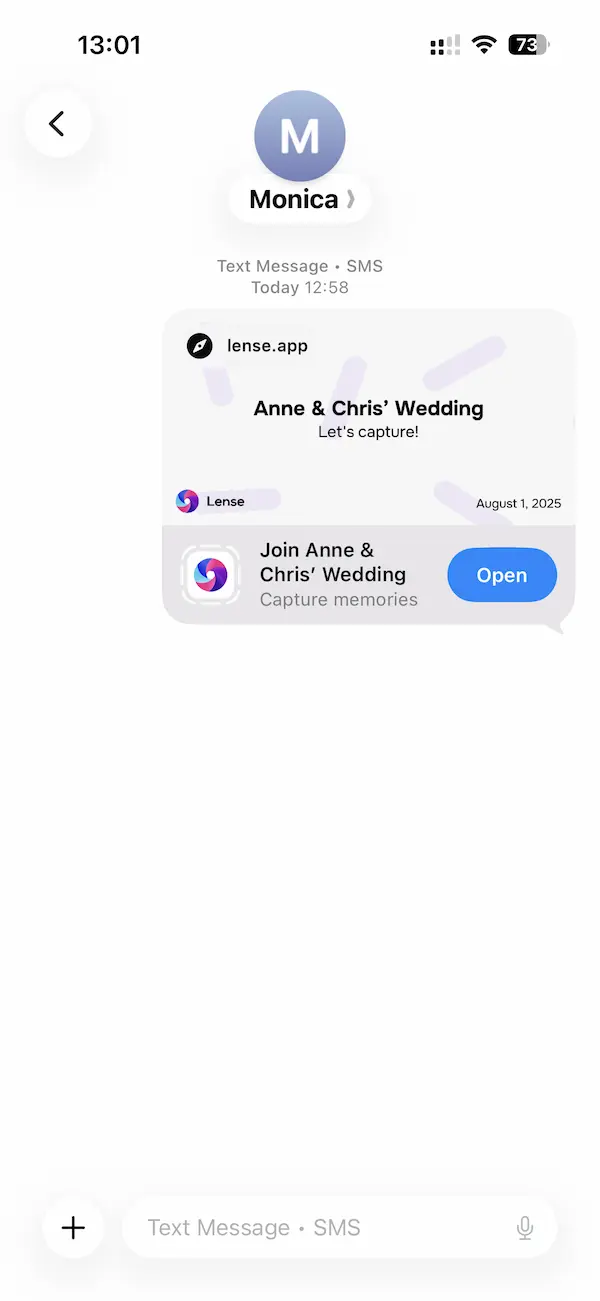
You can also send the link through WhatsApp, iMessage or any other app, so guests can join before the event starts.
The guest experience
For guests, joining takes seconds. No app, no account.
-
 1
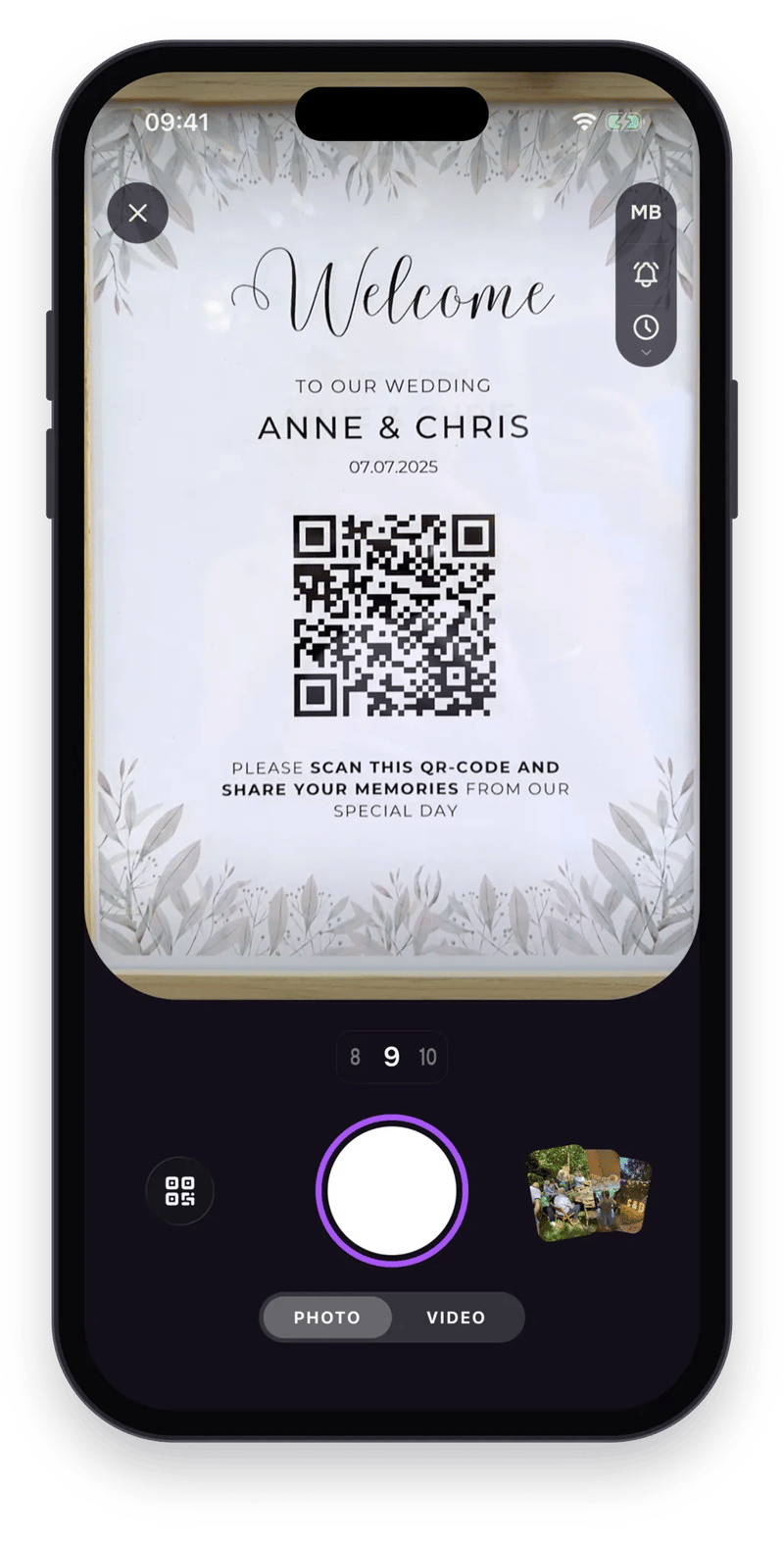
Scan the QR code or open the link.
Lense opens right in their browser, or as an App Clip on iPhone, and they enter their name. No app download needed.
-
 2
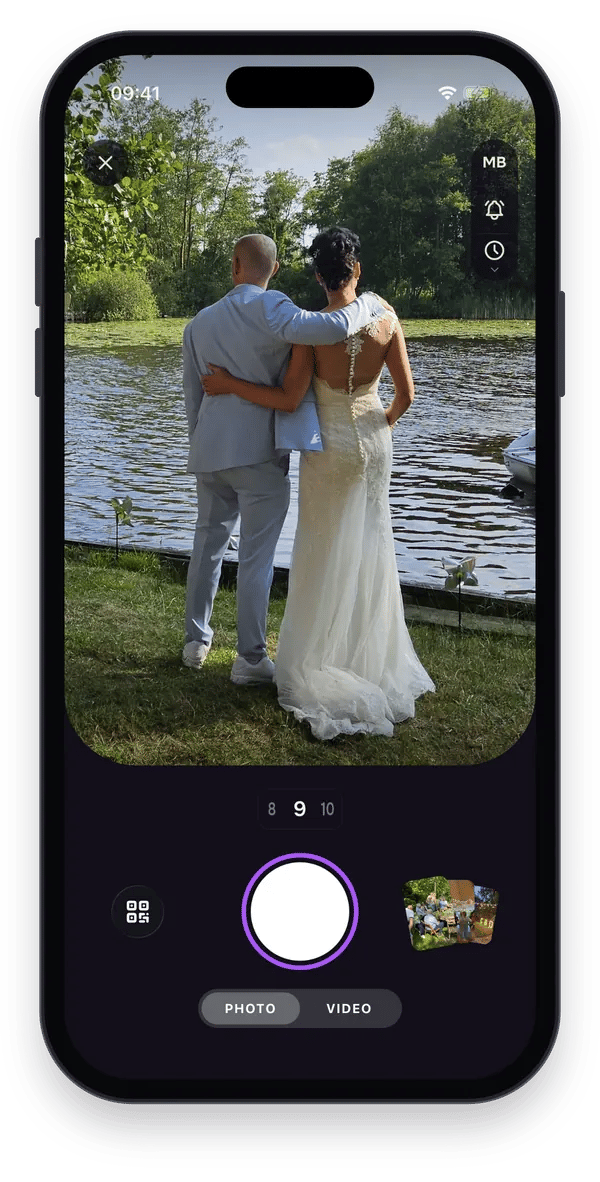
Start shooting.
Guests take photos or videos with the Lense camera, or upload photos from their camera roll.
-
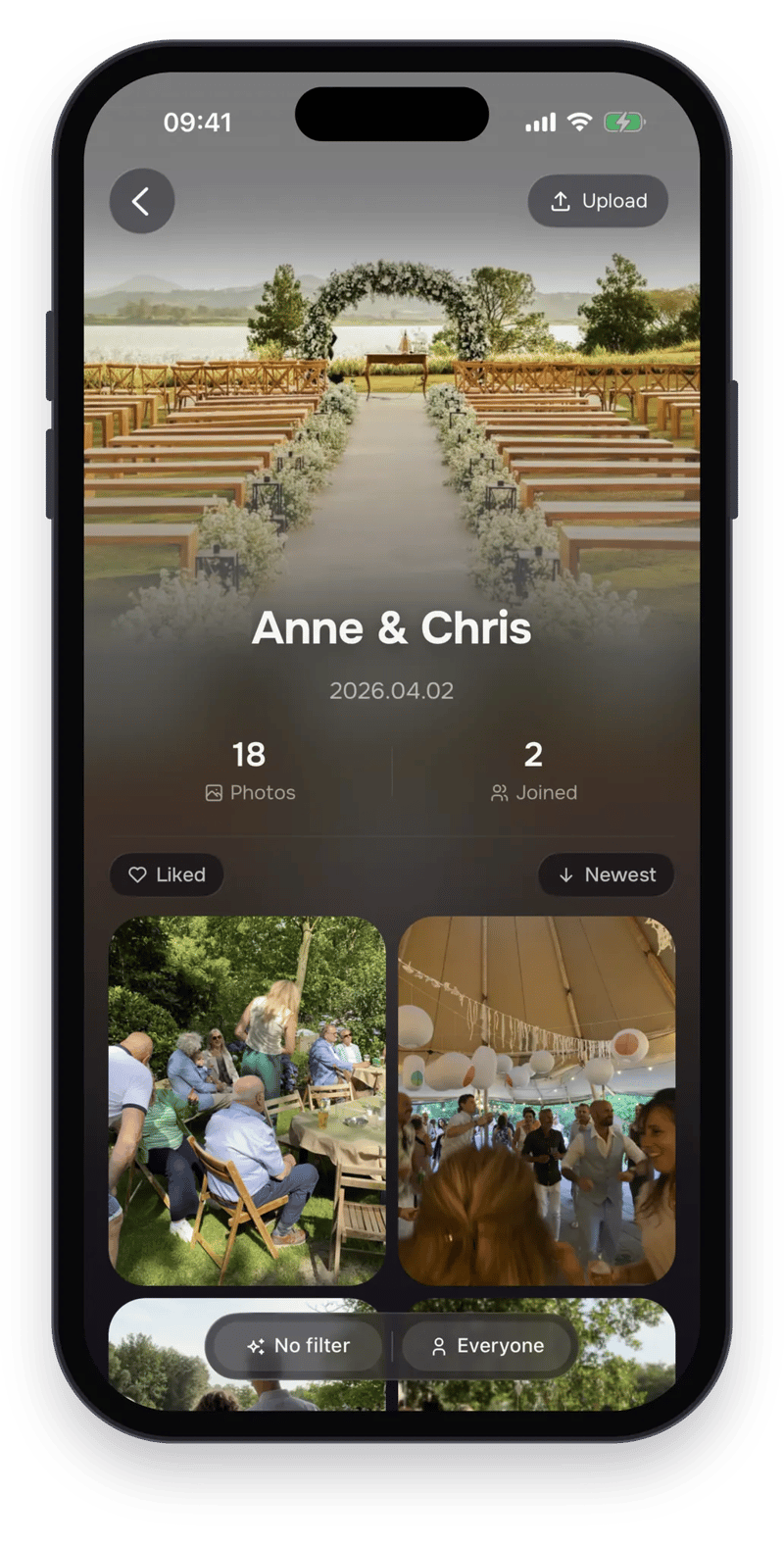 3
Add a caption, like and comment.
If the album is visible to guests, everyone can react to each other's shots once photos are revealed.
Privacy and control
You decide who joins and what stays in the album.
Only people with your QR code or link can join. Guests can't share a link from inside Lense, so you decide who gets access. Want to keep the chance of people outside your group joining as small as possible? Stick to the QR code at your event.
As a host, you can remove guests who don't belong there, and delete any photo or comment.
During the event: the live photo wall
The live photo wall shows new guest photos on a big screen as they come in, and keeps everyone taking photos. It's included with every event. Photos appear instantly, even with a later reveal for the album, and you can delete any photo in the app.


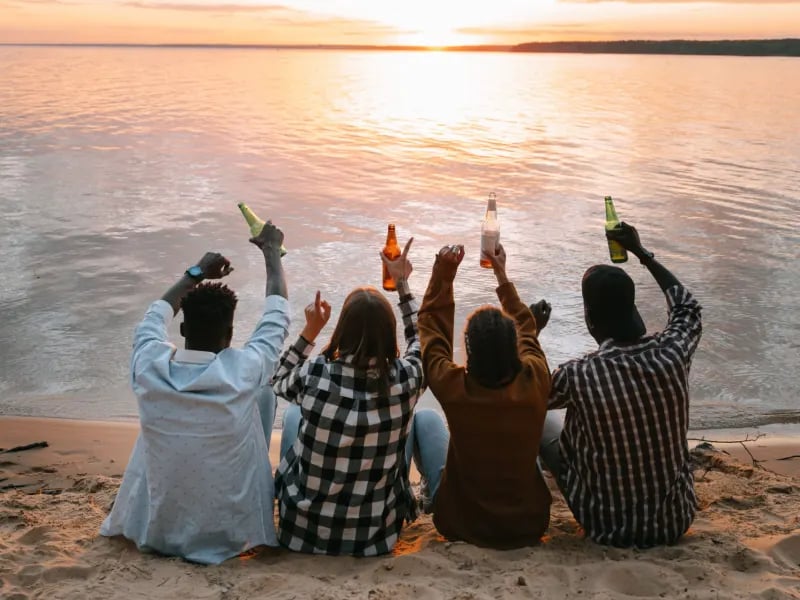
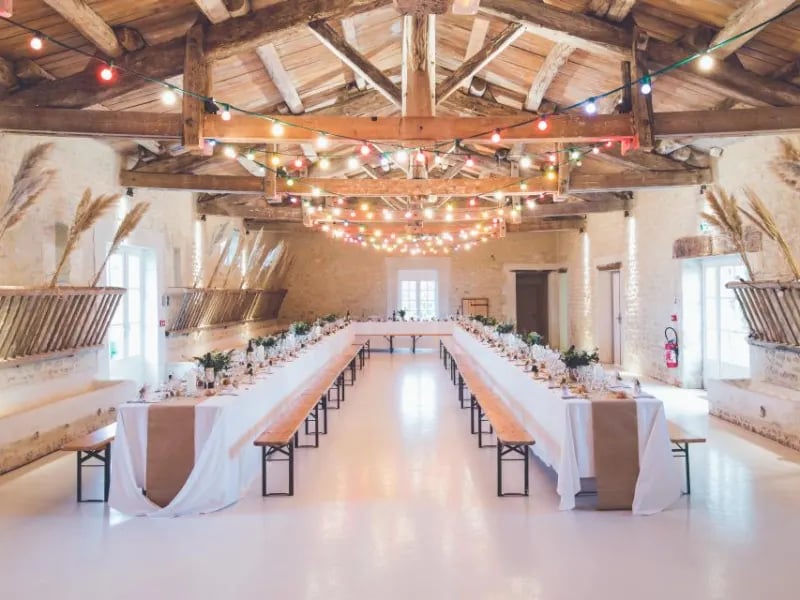
Scan & add!
How to set it up:
- 1 Open your event in the app and copy the live photo wall link.
- 2 Open the link on the device you'll display it on. That can be a smart TV's browser, or a laptop or tablet.
- 3 Connect to a bigger screen if needed. Plug your laptop or tablet into a TV, monitor or projector, for example with an HDMI cable.
- 4 Go full screen. New photos now appear automatically.
Tip: test the setup at the venue before guests arrive.
After the event: your shared photo album
All photos and videos end up in one shared album, in original quality.
- Your album stays online for 12 months, so there's plenty of time to look back, like and comment.
- As a host, you can download all photos and videos in one go. Guests can download photos one by one.
- Storage can't be extended after 12 months, so download your album and save it on your own device or cloud well before then.
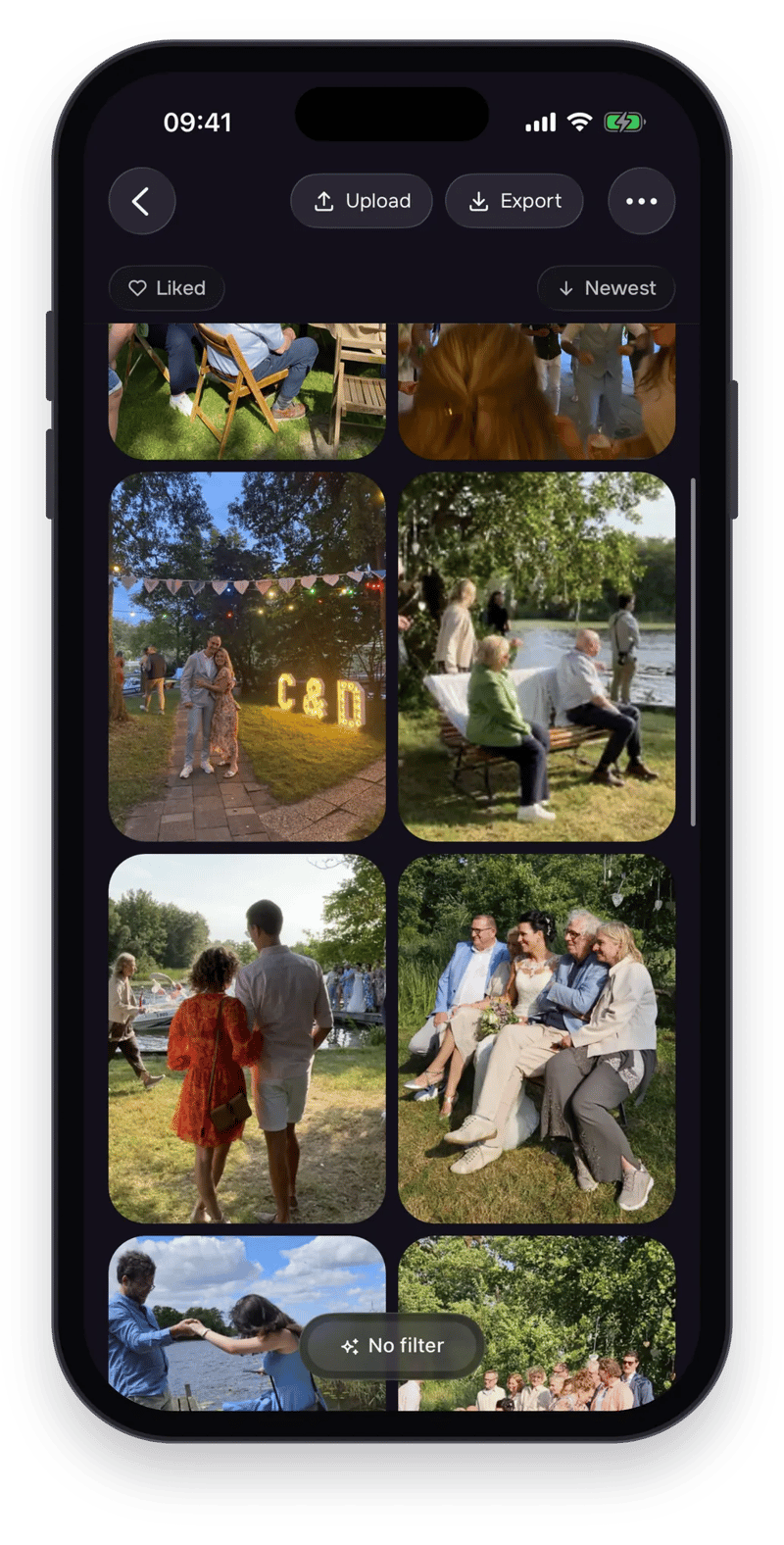
How to get the most guest photos for your event
-
Make the QR code easy to find
Make the QR code impossible to miss. Put it on every table and at the spots where people gather.
-
Get it announced
Ask your host, DJ or best friend to mention it early in the event.
-
Share the link early
Share the link before the event, so guests are already in when the party starts.
-
Run the live photo wall
Run the live photo wall. Seeing photos appear on screen gets people shooting.
-
Start a photo challenge
Give guests a reason, like a photo challenge: "best dance move" or "a photo with the oldest guest".
-
Pick the right photo limit
Choose a fitting photo limit. A small limit makes every shot count, but too small means you miss moments. For long events, consider unlimited photos.